
How To Remove Open To Work From Your LinkedIn Profile
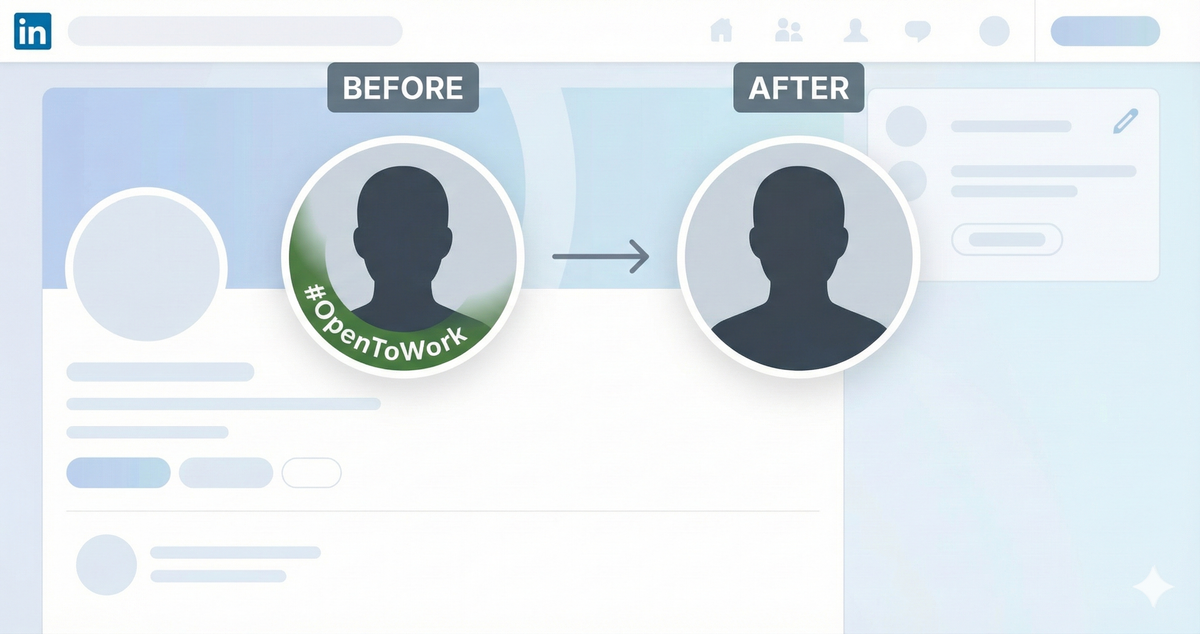
That bright green Open To Work banner can be helpful when you are actively job hunting - but it is not always the message you want on your LinkedIn profile. Whether you are moving into a quieter, more targeted search or shifting focus back to your current role, it is important to control how visibly open you appear to the market.
This guide walks you through how to completely remove Open To Work from your LinkedIn profile, or adjust it so only recruiters can see it. You will also learn how this small visibility tweak fits into a more strategic, confidential job search supported by Fitly.
How to remove Open To Work from LinkedIn completely
If you want to fully turn off Open To Work so that no one - not connections, not recruiters - sees that you are open, follow these steps:
- Go to your LinkedIn profile.
- In the Open To Work or job preferences section, click the pencil (edit) icon.
- In the edit window, select Delete from profile.
Once you confirm, LinkedIn removes:
- The Open To Work banner from your profile header
- The green photo frame signaling you are open
- Your Open To Work status from recruiter and member views tied to that setting
This is the cleanest option if you have accepted a new role, paused your search, or want to reset how you present yourself professionally.
How to remove the green Open To Work photo frame only
If you still want recruiters to know you are open, but you do not want to broadcast it to everyone in your network, you can keep the Open To Work feature active while removing the green frame from your profile photo.
Use this option when you are conducting a discreet search, especially if colleagues, managers, or clients might see your profile.
Steps to hide the Open To Work frame but stay visible to recruiters
- Go to your LinkedIn profile and click on your profile photo where the green frame appears.
- Click the arrow next to All LinkedIn Members.
- Change the visibility setting to Recruiters only.
- Save your changes, then refresh your profile.
After refreshing, the green Open To Work photo frame should disappear, while your open status stays visible in LinkedIn Recruiter to talent teams using the platform.
When to turn Open To Work off vs limit visibility
Both visibility options serve different stages of your career search. Here is how to decide which is right for you:
Turn Open To Work off completely when:
- You have just accepted a new role and want your profile to reflect stability.
- You are not actively looking and want to avoid inbound recruiter outreach.
- You are repositioning your brand and prefer to focus on thought leadership or portfolio updates instead of job seeking.
Hide the green frame but stay open to recruiters when:
- Your current employer or team is on LinkedIn and you need a confidential search.
- You want curated opportunities from recruiters without signaling a public job hunt.
- You are exploring the market and selectively applying to roles that strongly match your skills.
Align your LinkedIn profile and resume with your next role
Adjusting your Open To Work settings is only one part of a targeted job search. Once your visibility is under control, the next leverage point is how precisely your profile and resume match the roles you want.
Instead of using a generic resume and hoping it resonates, you can have Fitly analyze your resume against specific job descriptions, highlight skill gaps, and suggest tailored updates. That way, each application is sharply positioned for the role, while your LinkedIn headline, About section, and Experience entries reinforce the same story.
Used together, smart LinkedIn visibility settings and targeted resume optimization with Fitly help you stay in control of both how visible you are and how qualified you appear for the jobs that matter most.